
Understanding PC Gaming Performance Metrics with CapFrameX
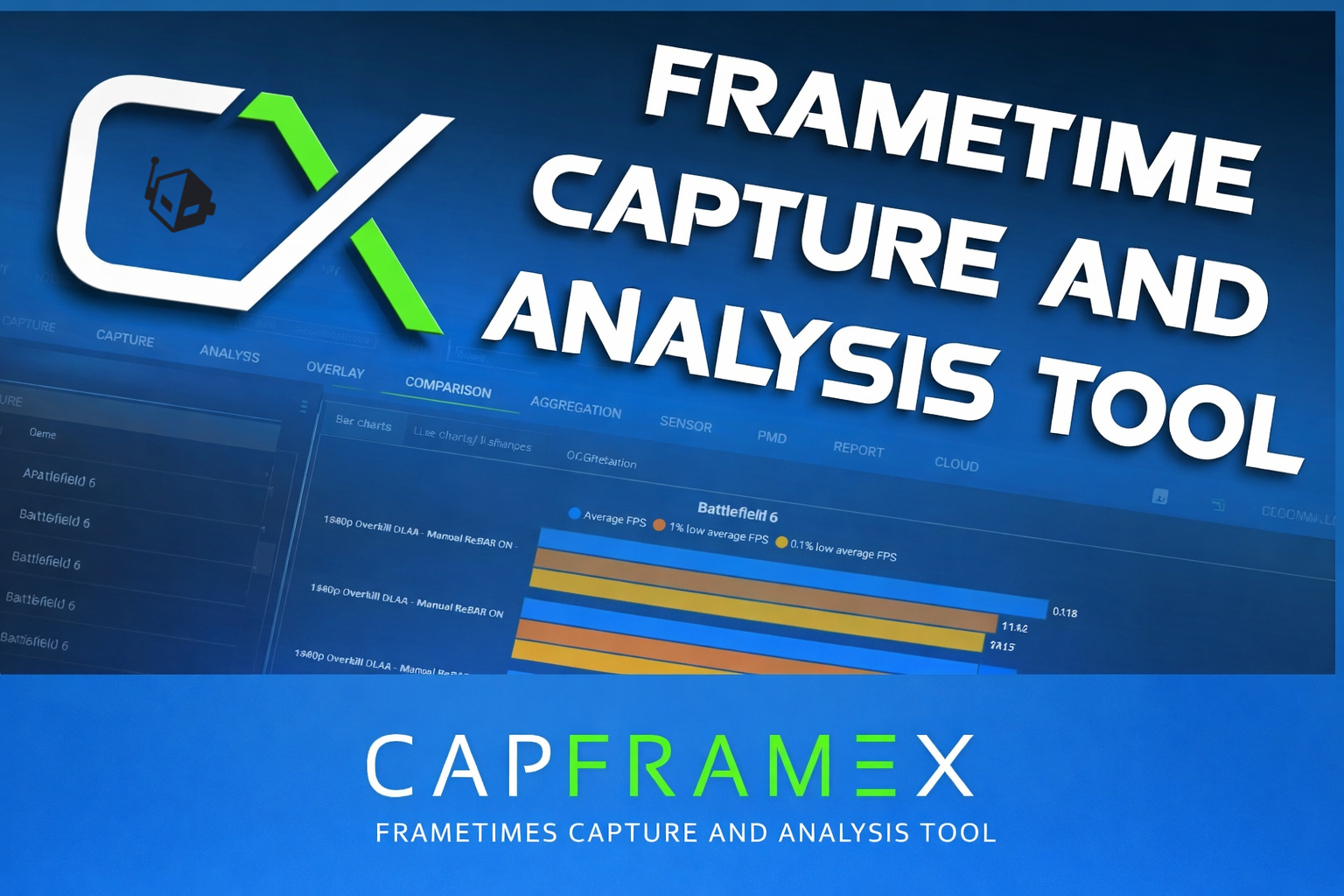
In the realm of PC gaming, the focus often centers on a singular figure: “Average Frames Per Second (FPS).” While this metric provides a glimpse of performance, it doesn’t encompass the full gaming experience. Many gamers have encountered scenarios where a high average FPS is marred by noticeable stutters and hitches, emphasizing that consistency is vital. This is where effective benchmarking plays a crucial role, as it measures not only average FPS but also the more informative 1% low and 0.1% low average FPS metrics. These indicate how frequently and severely frame rates drop during gameplay, highlighting the smoothness and responsiveness of a game.
CapFrameX has become a favored tool among PC gaming enthusiasts and reviewers, allowing for in-depth performance analysis. Unlike basic FPS counters, CapFrameX captures raw frametimes and converts them into informative performance metrics, enabling users to analyze, compare, and optimize their gaming experiences with precision. This guide will provide a comprehensive overview of setting up CapFrameX, conducting consistent benchmarks, interpreting results, and accurately presenting findings.
What CapFrameX Measures
Utilizing CapFrameX for benchmarking involves more than simply observing a single number; it captures detailed per-frame data and transforms it into meaningful performance metrics. The tool records the time it takes to render each frame—known as frametime—and then translates this data into traditional framerates. Since frametimes and framerates are inversely related, understanding both is essential for accurate performance analysis. CapFrameX calculates various metrics, including:
-
Average FPS: A standard measure of overall performance. While it’s an important indicator, it doesn’t always reflect the stability of the gameplay.
-
1% Low Average FPS: This metric reveals the average of the worst 1% of framerates, providing insight into the lowest sustained performance during demanding moments.
-
0.1% Low Average FPS: This shows the average of the worst 0.1% of framerates, indicating the minimum performance level that impacts the gaming experience, often leading to noticeable stutters.
These three performance metrics, particularly the percentile-based measures, are why many in the PC gaming community prefer CapFrameX for performance evaluation.
Preparing Your System for Benchmarking
Effective benchmarking requires a stable and controlled environment to ensure results reflect genuine performance, untainted by background processes or hardware limitations. Here are essential steps to prepare:
-
Update Software: Ensure the UEFI BIOS, operating system, and graphics drivers are current to avoid anomalies in performance and stability.
-
Minimize Background Activity: Close unnecessary applications and disable overlays. This includes browsers, cloud services, and chat/voice applications that may consume system resources.
-
Check Power and Performance Settings: Adjust Windows power settings to High Performance or Balanced. If using a laptop, connect to power and disable battery-saving modes during benchmarking.
-
Monitor Temperatures: Use tools like MSI Afterburner to keep an eye on CPU/GPU temperatures to avoid thermal throttling.
-
Maintain Consistency: Execute benchmarks under uniform conditions, using the same graphics settings and state of the operating system.
Once these preparations are complete, you will be positioned to gather meaningful performance data with CapFrameX.
Installing and Setting Up CapFrameX
Setting up CapFrameX correctly is crucial for reliable benchmarking. Follow these steps:
-
Download CapFrameX: Obtain the latest version from the CapFrameX GitHub Releases page, ensuring compatibility with .NET Framework 9 or higher.
-
Install RTSS (Optional): For displaying performance metrics during games, install Rivatuner Statistics Server (RTSS).
-
Configure Capture Options: In CapFrameX, customize capture hotkeys, durations, and sound cues for starting and stopping benchmark logs.
-
Use Run History Features: This allows for recording multiple benchmark runs and aggregating the data for more reliable metrics.
-
Run a Test Capture: After setting up, perform a test capture to verify the operation of CapFrameX and ensure captures appear correctly in the interface.
Capturing Benchmark Runs with CapFrameX
To achieve reliable benchmarking, follow these steps:
-
Launch both CapFrameX and your game: Start CapFrameX in the background, loading the scene you wish to benchmark.
-
Begin the capture: Use the configured hotkey to start recording the benchmark, ensuring you follow the same gameplay path for consistency.
-
End the capture: Stop the capture using the hotkey once the benchmark segment is complete. Each run will appear in the CapFrameX UI.
-
Perform Multiple Runs: Aim for at least three runs to derive accurate averages, maintaining consistent conditions across each trial.
Analyzing Benchmarks in CapFrameX
Once you have captured your benchmarks, the Analysis and Comparison tabs within CapFrameX offer valuable insights:
-
Analysis Tab: Examine individual runs through graphs and detailed metrics, such as frametime visuals and percentile summaries.
-
Comparison Tab: Evaluate multiple benchmarks side-by-side, facilitating an understanding of performance differences across various settings or hardware configurations.
Common Benchmarking Pitfalls to Avoid
Misleading results can arise from various mistakes during benchmarking. Here are some pitfalls to watch for:
-
Inconsistent Scenes: Always benchmark the same scene to ensure comparable results.
-
Ignoring Frametime Variance: Analyze 1% and 0.1% low average FPS alongside average FPS for a complete performance picture.
-
Inadequate Preparation: Minimize background apps and ensure all settings are consistent to avoid skewed results.
-
Running Only One Capture: Perform multiple runs to reduce variability and improve reliability.
By following these guidelines, you’ll ensure that your benchmarking efforts with CapFrameX lead to insightful analysis and accurate understanding of your gaming performance.
Conclusion
Benchmarking is more than achieving high FPS; it’s about assessing how consistently your PC delivers frames during gameplay. While average FPS provides a general insight into performance, understanding frame pacing and variability is essential for evaluating the gaming experience. CapFrameX offers the tools necessary for analyzing these important metrics, guiding smarter decisions about hardware and settings to enhance gaming performance.
As you explore the robust capabilities of CapFrameX, you’ll empower yourself to gain a thorough comprehension of your system’s performance profile, fostering a gaming experience that is both enjoyable and immersive.
—